Run Pareto Anywhere using Docker Desktop
Our step-by-step guide to easily run as a container on a Windows/Mac/Linux computer.
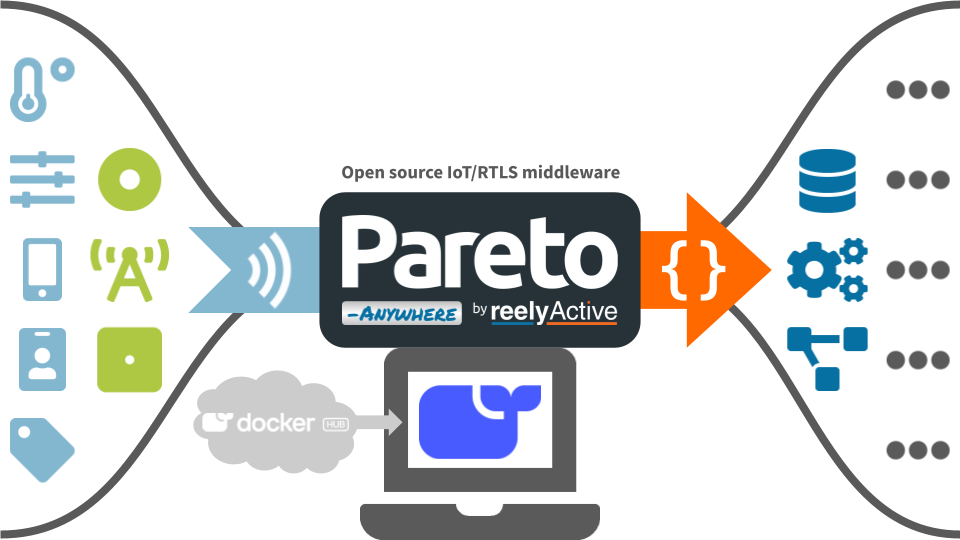
The TL;DR (Too Long; Didn't Read)
Learn how to run reelyActive's open source IoT/RTLS middleware via a friendly graphical interface.
- What will this accomplish?
- The computer will run Pareto Anywhere as a container managed via the easy-to-use Docker Desktop UI.
- Why use Docker Desktop?
- If you prefer graphical user interfaces ( ) over typing commands into a console ( ) , then Docker Desktop is the way you'll want to run Pareto Anywhere.
- What's the catch?
- Flexibility: should you need a custom configuration of Pareto Anywhere, you'll need to create a custom container, or run Pareto Anywhere another way.
Alternatives
Tutorials to consider instead
-

-
Run Pareto Anywhere on a PC
Pull the code from GitHub and run directly using Node.js.
Prerequisites
A recent version of Docker Desktop installed.
Commercial use of Docker Desktop in larger enterprises may require a paid subscription: Pricing FAQ.
-

-
Download Docker Desktop
Download and install Docker Desktop for your operating system and computing architecture.
Docker Desktop on Windows will require Windows Subsystem for Linux. ( wsl --install )
Installing Pareto Anywhere Step 1 of 2
Pull the container from Docker Hub, configure and run.
- Why from Docker Hub?
- The latest version of Pareto Anywhere (on GitHub) is always automatically published to Docker Hub.
- Where will it run?
- The container will run on the computer that is running Docker Desktop.

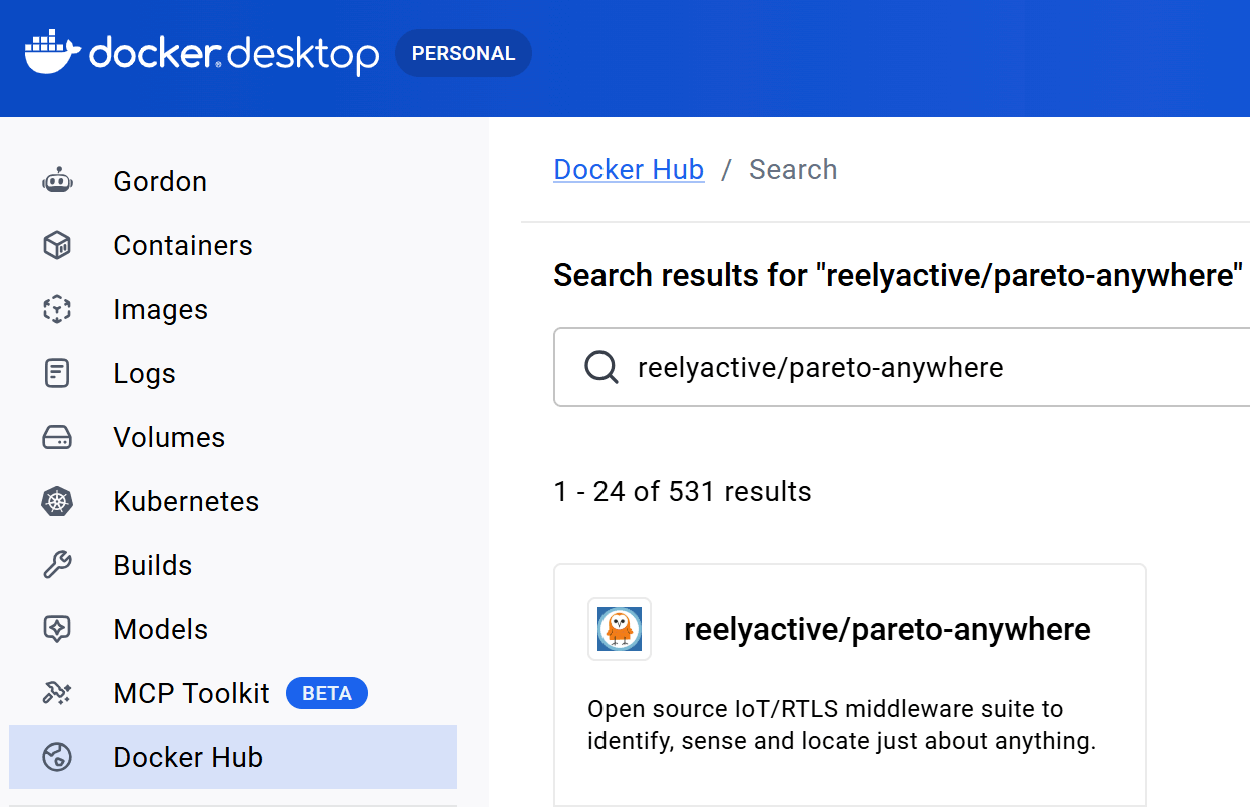
Find Pareto Anywhere Part 1
Open Docker Desktop and then:
- select the Docker Hub panel
- search for reelyactive/pareto-anywhere
- select the container from the search results
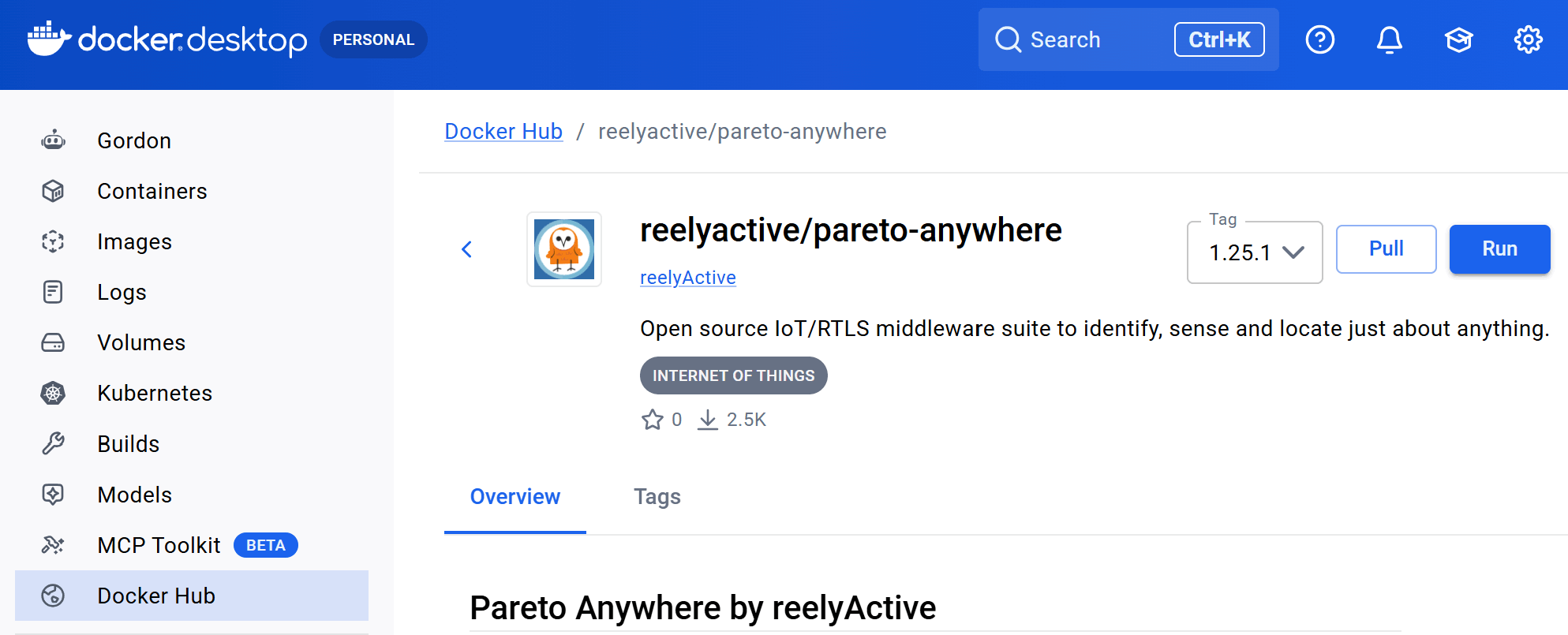
Run Pareto Anywhere Part 2
Select the version of Pareto Anywhere from the Tag pull-down, and then click Run.
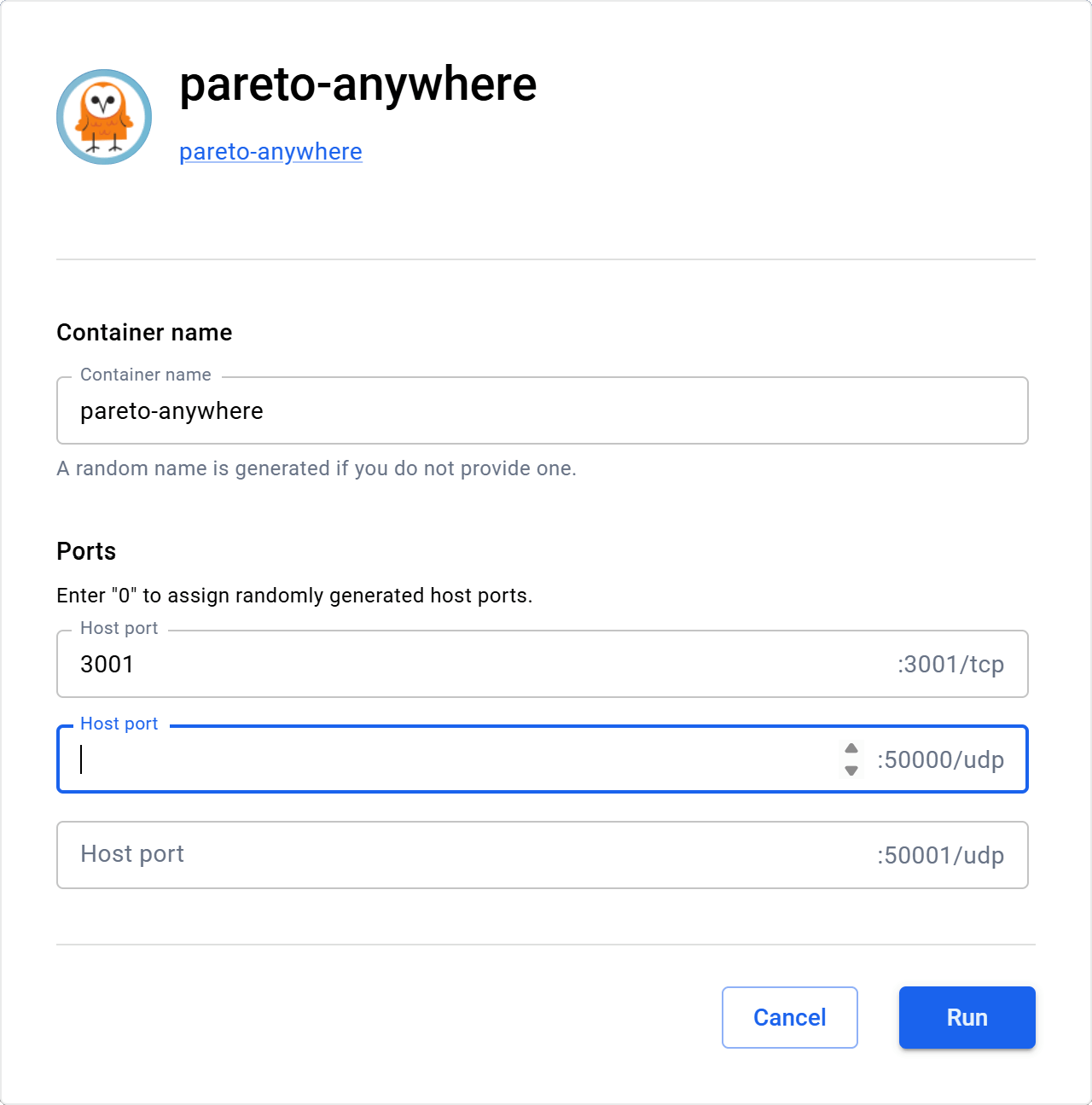
Configure the container:
- choose a meaningful container name (ex: pareto-anywhere)
- enter the default ports (or select alternatives if there's a conflict with another process running on the same machine)
Click Run to start the container.
Observe the container Part 3
Select the Containers panel to observe the pareto-anywhere container.
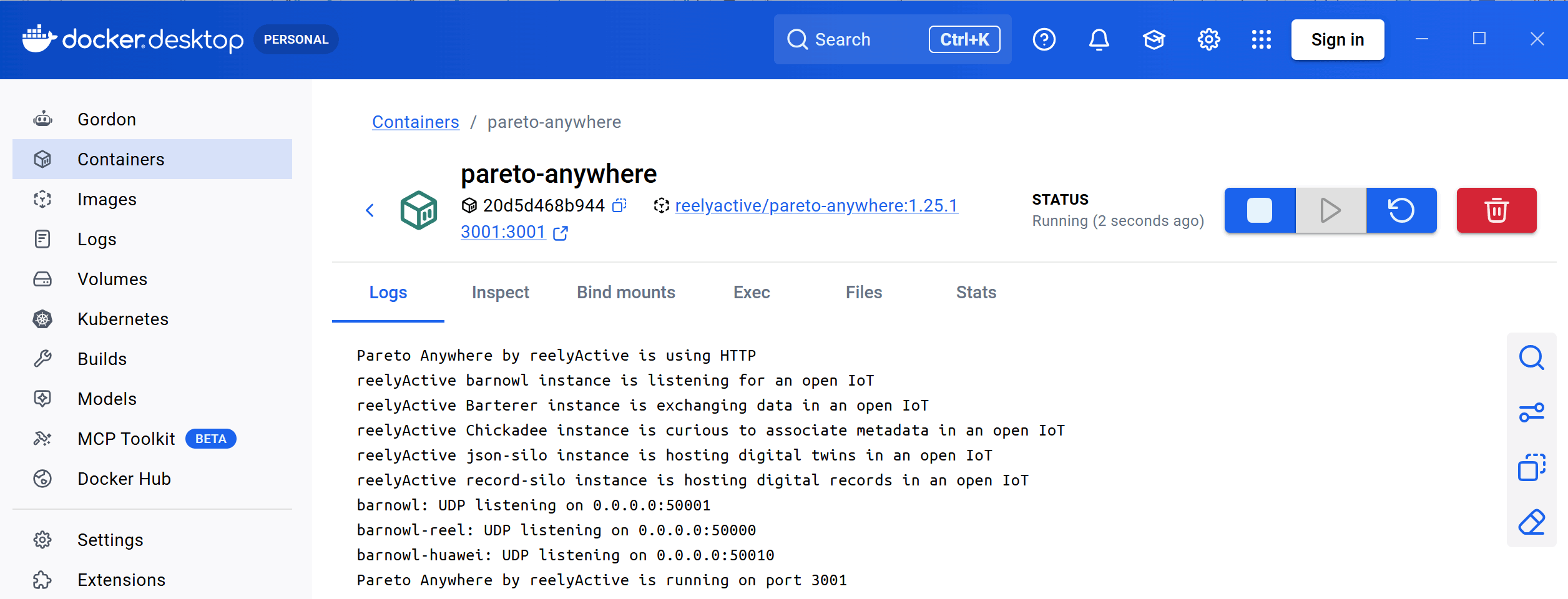
The stop, start, and restart icons can be used to modify the operation of the pareto-anywhere container, as required. Confirm that the container is running, and proceed to Step 2 below.
Use Pareto Anywhere Step 2 of 2
Confirm that everything works!
- Do I need IoT data?
- No. Pareto Anywhere runs even in the absence of IoT source data.
- Can I test my IoT data source?
- Yes. In the second part of this step you'll find how to quickly validate the integration with common hardware/modules.
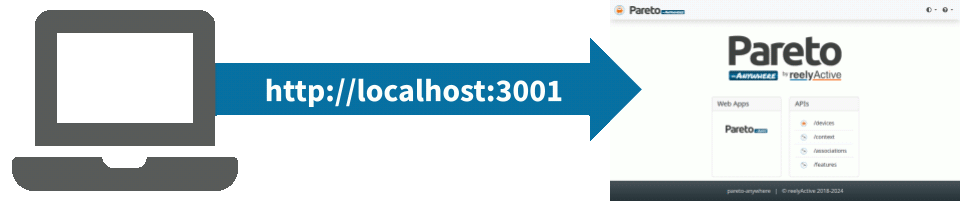
Browse to Pareto Anywhere Part 1
On the computer running Docker Desktop, browse to localhost:3001 to observe Pareto Anywhere running.
Run and validate a specific configuration (OPTIONAL) Part 2
Should a source of ambient IoT data be available (see the tabs below), it is possible to validate its integration with Pareto Anywhere, replacing xxx.xxx.xxx.xxx with the PC's IP address, where required.
Pareto Anywhere will automatically listen for ambient Bluetooth Low Energy data forwarded from reelyActive Owl-in-Ones and Minew gateways. Follow the step-by-step tutorials below to forward data from these gateways.
-

-
Configure a Minew G1 Gateway
Forward with the HTTP service to http://xxx.xxx.xxx.xxx:3001/minew
-

-
Configure a Minew MG3 Gateway
Forward with the HTTP service to http://xxx.xxx.xxx.xxx:3001/minew
-

-
Configure a Minew MG4 Gateway
Forward with the HTTP service to http://xxx.xxx.xxx.xxx:3001/minew
-

-
Configure a Minew MG7 Gateway
Forward with the HTTP service to http://xxx.xxx.xxx.xxx:3001/minew
-

-
Configure an Owl-in-One
Forward UDP packets to the host xxx.xxx.xxx.xxx on port 50001
Pareto Anywhere will automatically listen for ambient Bluetooth Low Energy data forwarded from compatible HPE Aruba Networking and Huawei APs. Follow the step-by-step tutorials below to forward data from these access points.
-

-
Configure Aruba IoT Operations
Forward Telemetry Websocket data to wss://xxx.xxx.xxx.xxx/aruba/aos10
-

-
Configure an Aruba Instant AP
Forward Telemetry Websocket data to ws://xxx.xxx.xxx.xxx/aruba/aos8
Forward UDP packets from the Huawei AP to the PC on port 50010
Pareto Anywhere will automatically listen for ambient Bluetooth Low Energy data from the PC's onboard radio—if compatible—provided an instance of barnowl-hci is running and forwarding the data. Follow the instructions below to install and run this option.
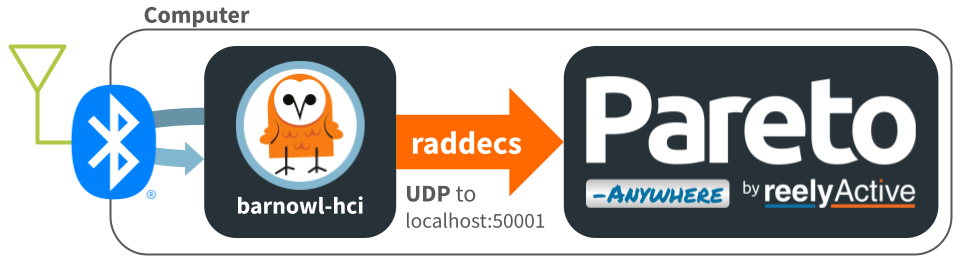
Install barnowl-hci
Open a terminal and complete the following:
- Browse once again to the folder in which you wish to download the source code.
- Clone the barnowl-hci repository with the command
git clone https://github.com/reelyactive/barnowl-hci.git - Change to the barnowl-hci folder with the command
cd barnowl-hci - Install all package dependencies from npm with the command
npm install1 min
Assign radio privileges (Linux only)
Allow Node.js programs the privilege to initiate scans with the command sudo setcap cap_net_raw+eip $(eval readlink -f `which node`)
Run barnowl-hci once to confirm that it can listen for ambient data:
-
npm startwill output radio decodings (raddecs) to the console for quick-and-dirty testing -
npm run forwarderwill forward raddecs to a local Pareto Anywhere instance
Enter Ctrl+C to stop either program.
Pareto Anywhere will automatically listen for ambient Bluetooth Low Energy data forwarded from reelyActive reelceivers on UDP port 50000.
Pareto Anywhere will automatically listen for ambient RAIN RFID data forwarded from compatible Impinj and RF Controls readers.
-

-
Configure an Impinj R700 Reader
Forward IoT Device Interface event data to http://xxx.xxx.xxx.xxx/impinj
-

-
Configure a Zebra FX9600 Reader
Publish Zebra IoT Connector event data to mqtt://xxx.xxx.xxx.xxx:1883
Data from RFC OS will automatically be ingested if running on the same machine (see barnowl-rfcontrols).
Pareto Anywhere will automatically listen for ambient EnOcean Wireless Standard data from a USB dongle connected to the PC provided an instance of barnowl-enocean is running and forwarding the data. Follow the instructions below to install and run automatically each time the Pi boots.
Install barnowl-enocean
Open a terminal and complete the following:
- Browse once again to the folder in which you wish to download the source code.
- Clone the barnowl-enocean repository with the command
git clone https://github.com/reelyactive/barnowl-enocean.git - Change to the barnowl-enocean folder with the command
cd barnowl-enocean - Install all package dependencies from npm with the command
npm install1 min
Assign serial privileges (Linux only)
Include the user in the dialout group to facilitate serial access to the USB dongle with the command sudo usermod -a -G dialout $USER
Run barnowl-enocean once to confirm that it can listen for ambient data:
-
npm startwill output radio decodings (raddecs) to the console for quick-and-dirty testing -
npm run forwarderwill forward raddecs to a local Pareto Anywhere instance
Enter Ctrl+C to stop either program.
👌 Celebrate Part 3

Pareto Anywhere now #RunsAtTheEdge on your machine!
Feedback from our user community guides & motivates the continuous evolution of our open source technologies—and our obscure memes—so don't by shy to reach out moving forward!
Enjoy the data Part 4
Our cheatsheet details the raddec, dynamb and spatem JSON output from the Pareto Anywhere open source IoT middleware.
-

-
Developers Cheatsheet
"Owl" you need to know about Pareto Anywhere's core data structures.


Tutorial prepared with ♥ by jeffyactive.
You can reelyActive's open source efforts directly by contributing code & docs, collectively by sharing across your network, and commercially through our packages.Where to next?
Continue exploring our open architecture and all its applications.
-

-
Directory of Devices
Browse all device configuration tutorials and development guides.
-

-
reelyActive Developers
Browse all developer documentation and tutorials.
-

-
reelyActive
Together, let's make sense of things.